Update March 2023: I recently came back to this for a project and found there’s been a change to the way the Logic Apps/Power Automate HTTP action interprets the JSON body which means a small change is required in the way you construct it in your workflow definition.
In the JSON example below you’ll see escaped double quote characters within the value for the Content-Disposition property of each item in the $multipart array, as below:
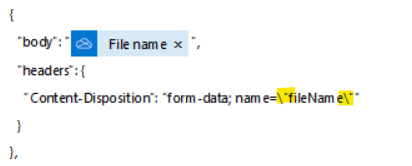
This now causes the HTTP action to no longer interpret this as a multipart form and instead just sends the JSON to the upstream server and attaches a content-type: application/json header to the POST request. This is not what you want.
So, to get past this, create a compose action at the beginning of the workflow with a ” character as the value:

Now, in place of the escaped quote characters, place the dynamic content for this compose like so:
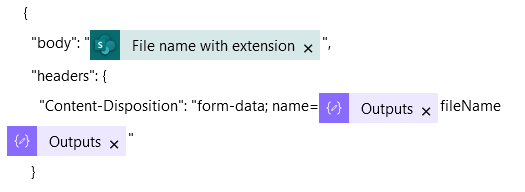
Now, back to the original post:
A common way 3rd party APIs handle file uploads is via an HTTP multi-part form. The API documentation might point to some dry RFC documentation like this
The short of it is you must invoke an HTTP POST request with the body formatted, to use the example in the linked document, like this:
        Content-type: multipart/form-data, boundary=AaB03x

        --AaB03x
        content-disposition: form-data; name="field1"

        Joe Blow
        --AaB03x
        content-disposition: form-data; name="pics"; filename="file1.txt"
        Content-Type: text/plain

         ... contents of file1.txt ...
        --AaB03x--
In the Power Automate & Logic Apps HTTP action you can write this plain text directly into the body, and it works OK as long as the file content is plain text.
I’m using Bamboo HR as an example below. In this screen shot, the upload works fine, if you want to create a file called readme.txt containing “This is a sample text file.”

But what about binary content? What if I want to upload an image or PDF?
Your first thought might be put some dynamic content where “This is a sample text file.” is:
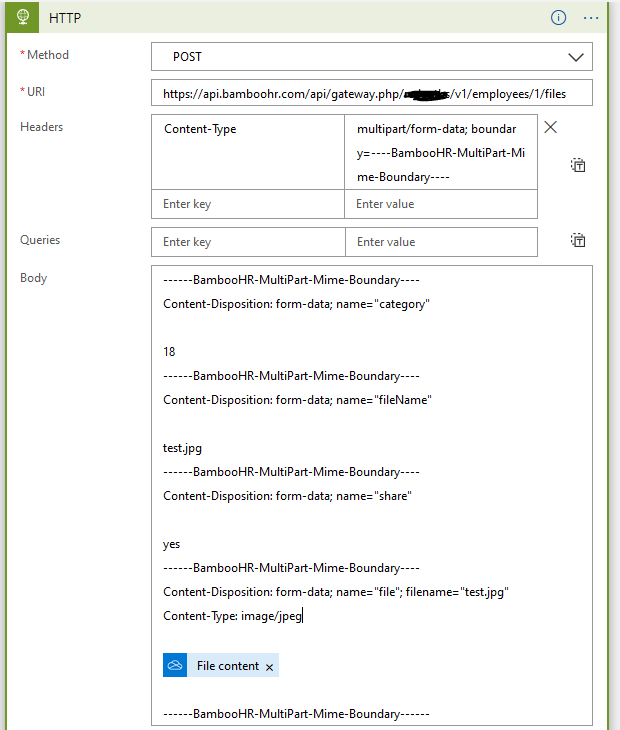
Does it work? Well sort of. The HTTP action succeeds and returns a 201 status.
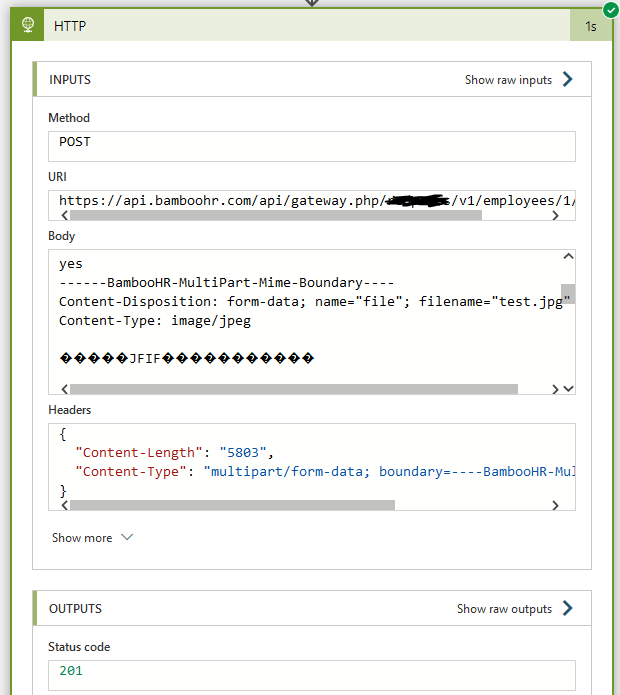
However, the file in the destination is corrupt. It’s there, and the file size is sort of right, but the file is corrupt.
If you open both files in Notepad you can see something has happened to to the content. The one on the left is the original file and the right is the one downloaded from the upstream service we just posted the file to:
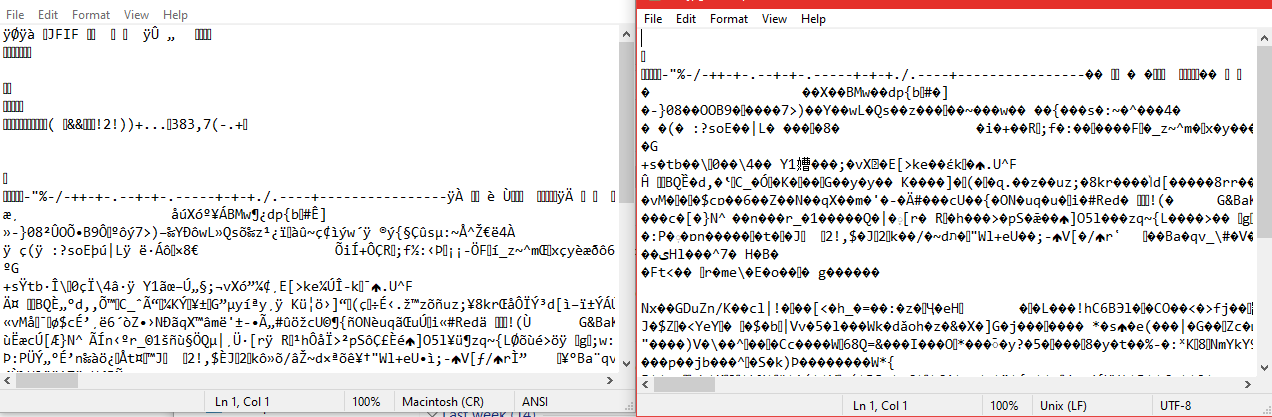
If you try and convert to base64 you get similar results – a file, but a corrupt one with the contents markedly different from the original when you open in a text editor.
So how do you solve this? There’s isn’t really a great deal of documentation around to help. The nearest you get is the Logic Apps HTTP connector documentation (while this is the Logic Apps documentation, Power Automate is built on Logic Apps so it applies equally there too).
Although this small piece of documentation is highly valuable in solving the problem, it misses a couple of key requirements: Attributes and the schema of the file content.
In my example above the file has several attributes: a category, which in my case is represented by a numeric string, 18, a file name (this is separate from the actual filename within the header of the file section of the multi-part form) and also a boolean, shared, which is represented by a text string “yes”. Also omitted from the Microsoft material is the schema of the body property of the file. They simply put trigger() in their example as the body, with no explanation as to what that actually is.
So how do you construct the JSON body of the HTTP action to include those attributes?
I’ll save you the hassle of finding out by explaining below, but I will say how I found out:
You can create a new Flow that’s triggered on “when an HTTP request is received”. Change the method to POST and then add a compose action. Put the “Body” dynamic content into the compose and save. Copy the URL for the trigger and go back to your original Flow.
Next, change the URL in the HTTP POST action to the one in your clipboard and remove any authentication parameters, then run it.
Your new flow will trigger and in the compose action you should see the multi-part form data received in the POST request. You can now start playing around with the JSON in the HTTP body until you get something that resembles your API documentation.
So, this is the result of that process:
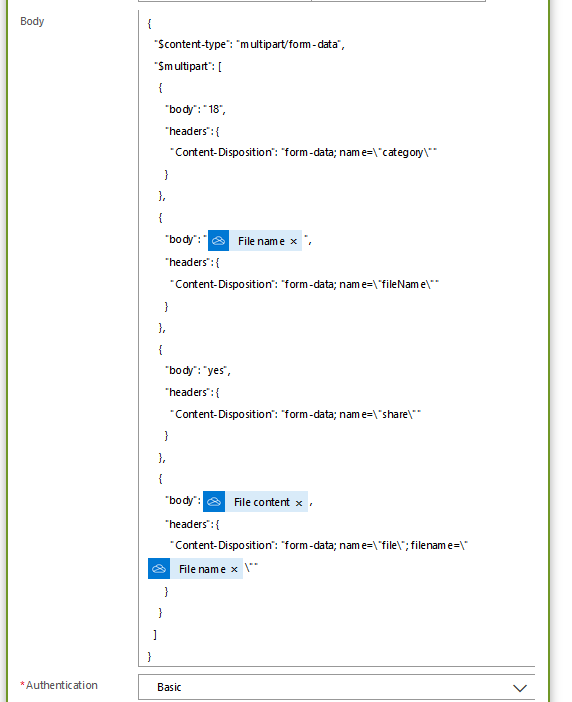
It’s actually pretty simple when you look at it. The body object has two attributes; $content-type and $multipart.
The HTTP action interprets the $content-type property and puts the right data into the content-type header of the request. There’s actually no need for you to specify any headers at all in your HTTP action, unless for authentication purposes.
The $multipart attribute is an array, and each object in the array is a separate part of the form, so for every point in the plain text you’d put a form boundary, that’s another object in the array.
Each object in the array has a headers and a body attribute. :
——BambooHR-MultiPart-Mime-Boundary—-
Content-Disposition: form-data; name=”category”
112
——BambooHR-MultiPart-Mime-Boundary—-
vs.
{
“body”: “112“,
“headers”: {
“Content-Disposition”: “form-data; name=\”category\”“
}
}
In the case of the actual file, there’s a quirk. You would expect, based on the following, that there would be two headers; Content-Disposition and Content-Type:
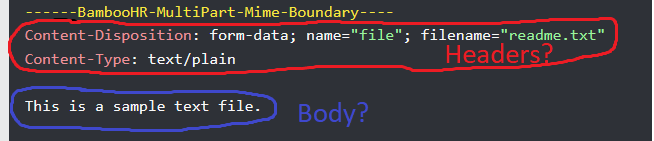
But that’s actually not so. The JSON must be constructed like as follows. The content-type is part of the body:
{
“body”: {
“$content”:”iVBORw0KGgoAAAANSUhEUgAA…..”,
“$content-type”: “image/jpeg”
},
“headers”: {
“Content-Disposition”: “form-data; name=\”file\”; filename=\”test.jpg\””
}
}
Refer to the March 2023 update at the top of this post!!!!!! These escaped quotes no longer work – use a compose!
Depending on where you’re getting your content from, you might already have the whole body object in the right format.
For example the output of SharePoint and OneDrive Get file content, and OneDrive’s Convert File actions contain a body with the $content-type and $content attributes, with the $content in Base64 already:

So, if you’re using an action like that earlier in your flow, you could just insert the “File content” dynamic content directly into the body like this:
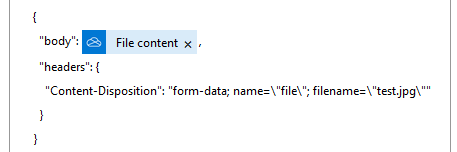
Your mileage may vary: If you’re getting the file content from a connector that outputs binary, or indeed base64 but not in the same format as the Get file content actions, then you will need include those properties in your HTTP body and possibly convert the dynamic content into base64 first using the base64() function in the expression builder.
You would also need to get your content type from somewhere too, if the upstream API you’re posting to cares about it.
To finish, I need to give some credit to SamPo on the Microsoft Power Automate forums, who figured all this out long before I did and provided great help in my time of need.
If you feel like this has saved you time and frustrations, feel free to leave a small donation:


 William's IT Blog 🍉
THANK YOU!!!! This just saved me a whole world of pain. I’m attempting a similar integration with TalentLMS.
LikeLike
No problem. Glad it’s helped.
LikeLike
DUDE YOU ARE A GENIOUS!!!!!!! I WAS FREAKING OUT TO MAKE IT WORK!!!!!!!!
LikeLike
Thank you very much for your blog. It helped me to realize some key points for multipart-form-data.
LikeLike
be awesome if you could post something about PDF files. Seems they need to be in binary format to be readable on the other end yet the JSON of the body doesnt parse if you use base64tobinary on the file content…. any tips!?
LikeLike
It might be a limitation of your upstream API. I’ve successfully posted base64 encoded PDFs to the APIs I have to deal with using this technique. The HTTP request body is plain text so putting binary content directly in there is never going to work.
LikeLike
Thanks Wilheim, we did get it working, we got it to work by changing “$content-type”: “multipart/form-data” to “$content-type”: “multipart/mixed”. Then base64 encoded file contents posted fine via the body. Thank you so much for replying, much appreciated.
LikeLike
Hi,
This is Ali I am trying to “Pen to Print” API from rapid API but I am unable to get the result when I am trying to upload a file it throws the error below.
Can you guide me about the issue and how can I solve it?
{
error: ‘General Exception:{} has type dict, but expected one of: bytes, unicode’,
log: [
‘session null’,
‘srcUrl null’,
‘includeSubScan null’,
‘Execution Time:0.00026416778564453125’
],
result: ‘0’,
time: 0.00026416778564453125
}
LikeLike
You’ll need to show us more detail. What does the body of your HTTP request look like?
LikeLike
Is this body format compatible with ADF web activity?
LikeLike
I have never tried, but if you can’t get it to work, you could create a logic app that triggers on HTTP POST and accepts application/json with the content bytes as a a base64 string property, among whatever other metadata you need. Transform it into this schema in the Logic App, make the multipart request in the Logic App and pass the response back using the Response action. Basically just a very simple bit of middleware. You could probably do the same quite easily in PowerShell as a HTTP triggered Azure function
LikeLike
Hi Will,
Will is work with audio files as well or is there something special required for processing sound audio via the HTTP action?
Dan
LikeLike
It’ll work for any sort of file, provided the upstream service supports it of course.
LikeLike
I figured as much. I have an mp3 file that I want to transcribe via Whisper API. I keep receiving an “invalid file error” message saying it only supports mp3, wav, etc. etc.
The file comes from blob storage and I submit it to the endpoint (without form boundaries, used the binary method). Even got a SAS URI on it.
Using the File Content for the output, I encode the base 64 in a Compose action. The encoding is a valid MP3. All good there.
Everything seems to check out but I keep getting the invalid file type issue. It has to be the encoding, right? The mp3 came from the Azure AI Speech service – it’s a TTS file – so I’m confident a cigar is a cigar.
Works fine in Postman but PA is a slightly different world. Did you run into this at all? Could the escape string + Compose be causing this?
LikeLike
The file will already be in the right format from the blob storage API, just place the output of the Get blob content directly into the JSON body of your HTTP request – no need to do any conversion.
LikeLike
That’s what I thought…and I tried that, too.
My first flow authenticates and posts the file using a registered azure app’s details. That part is successful using File Content, no issue. Valid base64 string returned.
The second flow, Respond to an HTTP request, I use the output schema from the first flow (could be v wrong there) as the response schema then create a Compose and place the Body from the Respond… action.
When I put the final body together in the next HTTP request, I receive an error for a BadRequest.
Second flow HTTP action body:
{
“$content-type”: “multipart/form-data”,
“$multipart”: [
{
“body”: “whisper-1”,
“headers”: {
“Content-Disposition”: “form-data; name=@{outputs(‘quote’)}model@{outputs(‘quote’)}”
}
},
{
“body”: “@{outputs(‘Compose’)}”,
“headers”: {
“Content-Disposition”: “form-data; name=@{outputs(‘quote’)}file@{outputs(‘quote’)}; filename=@{outputs(‘quote’)}test.mp3@{outputs(‘quote’)}”,
“Content-Type”: “audio/mpeg”
}
}
]
}
If it’s a BadRequest, it’s gotta be here. The Base64 string makes it all the way through to the HTTP request but dies on the vine at the very end for some reason.
LikeLike
I just found this comment while updating the page. Sorry! What could be happening here is Power Automate, and indeed Logic Apps, sometimes does implict base64 conversion. See the note here: https://learn.microsoft.com/en-us/azure/logic-apps/workflow-definition-language-functions-reference#base64-encoding-and-decoding
Most of the time you don’t have to think about this much but sometimes it’s a real pain. Check the exact base64 string of what you’re posting to the Whisper API vs what you get out of the blob storage. If it’s different, you might find if you decode it using an online base64 decoder, you just get another base64 string (the original file).
LikeLiked by 1 person
I’m going to pick this up again and let you know how it goes. No worries, thanks so much for responding!
LikeLike
Thankk you for your post
I think i have similar issue but i can not resolve it.
I need to send a text file by using post http to formated
https://files-service.xxxx.bench.xxxxxx.xx/fffffffff_middleware/files?token=xxxxxxxx
My test on insomnia succeed. this is its generated HTTP code
xxxxxxxxxx
POST /fffffffff_middleware/files?token=xxxxxxxxxx HTTP/1.1
Cookie: edge-FFFFFFFFF=srv-ggKBI%2F6svSOErQgqqmdUCw%7CZb11x
Content-Type: multipart/form-data; boundary=—011000010111000001101001
Host: files-service.xxxxx.bench.xxxxx.xx
Content-Length: 164
—–011000010111000001101001
Content-Disposition: form-data; name=”file”; filename=”fa017732.txt”
Content-Type: text/plain
—–011000010111000001101001–
xxxxxxxxxx
This is my body code in HTTP
{
“$content-type”: “multipart/form-data”,
“$multipart”: [
{
“body”:
{
“$content”: @{outputs(‘Générer_du_hachage’)?[‘body/valueToHash’]} ,
“$content-type”: “text/plain”
},
“headers”: {
“$Content-Disposition”: “form-data; name=@{outputs(‘cote’)}file@{outputs(‘cote’)}; filename=@{outputs(‘cote’)}fa017732.txt@{outputs(‘cote’)}”
}
}
]
}
When i try to test i have this message
The provided workflow action input is not valid.
Thank you for your help
LikeLike
I’m not sure what’s wrong with your JSON. It parses correctly in a Compose action with no errors for me, but when I run it I can’t see the output in the run history for some reason. I get a strange error.
If you are only posting plain text you can simply use a text body with multipart boundaries instead of JSON and it’ll work OK anyway.
LikeLike
Hi
Thanks for the Post
I have a similar issue trying to upload a file to bambooHR .When opening the uploaded file its showing blank. I am getting base64 pdf file from my previous action and sending the file to bamboo
I am very new to Azure but I know some issue with regards to conversion to binary
This is my upload to BambooHR Http action.
–boundary1234
Content-Disposition: form-data; name=”category”
41
–boundary1234
Content-Disposition: form-data; name=”fileName”
test.pdf
–boundary1234
Content-Disposition: form-data; name=”share”
yes
–boundary1234
Content-Disposition: form-data; name=”file”; filename=”test.pdf”
base64ToBinary(body[‘pay_stub’]?[‘content’])
–boundary1234–
Response from previous api
{ “$content-type”: “application/pdf”, “$content”: “mMDU2MjRmNTY5ZjdmY2E5YmVmMDJjNzM0NWUzNzlhMzdlMWU5MzAyMWFmZmE0YmFlNWI5NzMyNjU4NTM2NzI2ZDNlYjgyYTAwYTcwMTMwNTRmMDQwPl0vSW5mbyAzIDAgUi9Sb290IDEgMCBSL1NpemUgMTg+PgolaVRleHQtcGRmSFRNTC02LjEuMApzdGFydHhyZWYKMTg1MTQKJSVFT0YK….” }
Thanks in advance
LikeLike
Follow the instructions in the article. You are trying to post a plain text body, which as I explain in the article, will not work for non-plain text files. The whole purpose of the article is to tell you how to get around the issue you are experiencing.
LikeLike
thanks for the post
I can send a pdf file from power automate get file content to an api service
LikeLike