
Update: Since I wrote this article, Microsoft introduced the slice() function, which is a far easier way of parsing the text. The substring() function needs the length of the substring as its 3rd input, which we have to calculate by subtracting the index of the end of the string from the index of the start of the string. This calculation is quite complicated and certainly hard to memorise.
The slice() function however, only needs the index of the end of the string and does the calculation for you. So to get the From address for example, instead of this:
trim(
	substring(
		body('Body_to_text'),
		add(
			indexOf(
				body('Body_to_text'),
				'From:'),
			6),
		sub(
			indexOf(
				body('Body_to_text'),
				'Sent:'),
			add(
				indexOf(
					body('Body_to_text'),
					'From:'),
				6)
			)
		)
	)
We can instead do this:
trim(
	slice(
		body('Body_to_text'),
		add(
			indexOf(
				body('Body_to_text'),
				'From:'),
			6),
		indexOf(
			body('Body_to_text'),
			'Sent:'
		)
	)
)
See, much easier! Ok, here’s the original article:
Scenario: You have a flow that picks up emails that have been forwarded to an inbox, and you want to capture the original sender name and email address, rather that those of the person who forwarded the mail.
For example you could have a person monitoring an inbox for particular types of emails, then have a Quick Step in Outlook they can press when they identify certain characteristics in the email, which forwards it to a mailbox to be picked up by a Flow to process.
Firstly, trigger on when a new email arrives then put the body through HTML to text:

Next, you want the positions in the text where the end of the string From: exists, and the beginning of Sent:. We use the indexOf function for this, and in the case of From: add 6 to the result, as indexOf gets the beginning of the search string and 6 is the length of “From: ” including the space.

Initialise a couple of string variables to hold the From name and From Email. You could do this right at the beginning if you want, it doesn’t matter, as long as it’s before the condition that comes next.

Now add a condition that evaluates whether we actually found From: and Sent: in the email in the right order. If the mail wasn’t forwarded, or if the person who forwarded the mail stripped out the quoted text, it could be missing. If it’s missing and we try to run the message body through the next series of formulae the flow will fail and we need to handle that properly.
We do this by evaluating of the index of Sent: is greater than the index of From:. If not, then set those two variables to something that indicates no email address was found. If yes, then we do the heavy lifting in a Compose and two Set variable actions:

Here are the formulas for the three steps within the If yes branch:
Extract Email:
trim(
	substring(
		body('Body_to_text'),
		add(
			indexOf(
				body('Body_to_text'),
				'From:'),
			6),
		sub(
			indexOf(
				body('Body_to_text'),
				'Sent:'),
			add(
				indexOf(
					body('Body_to_text'),
					'From:'),
				6)
			)
		)
	)
Set strEMail parsed:
trim(
	substring(
		last(
			split(
				outputs('Extract_Email'),
				'<')
			),
		0,
		sub(
			length(
				last(
					split(
						outputs('Extract_Email'),
						'<')
					)
				),
			1)
		)
	)
set strFromName parsed:
trim(
	substring(
		first(
			split(
				outputs('Extract_Email'),
				'<')
			),
		0,
		sub(
			length(
				first(
					split(
						outputs('Extract_Email'),
						'<')
					)
				),
			1)
		)
	)
You may notice the only difference between the two formulas for the Name and Email is whether we take the first or last item of the array generated by splitting outputs(‘Extract_Email’) on the < character.
In the first formula (Extract Email) the substring() function is getting everything starting from the 6 characters after the start of ‘From:’ and ending at the start of the string ‘Sent:’. Substring() requires the text in which to find the substring as the first input parameter, then the starting index (the number of characters from the start of the input string) as an integer number, and then finally the length of the substring.
Obviously in this case we don’t know how far into the quoted email we’ll find the email address and we don’t know how long the email address will be, so we need to find these values using indexOf and in the case of ‘From:’ add 6 to it to get the end of the search string not the start.
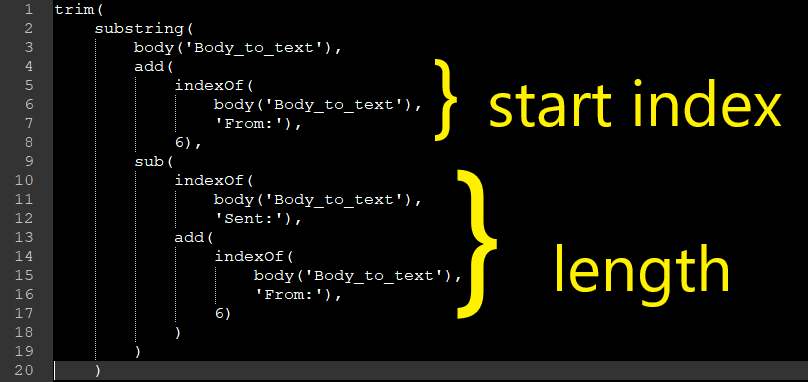
This formula outputs everything, trimmed of leading or trailing spaces, between the end of ‘From: ‘ and the beginning of ‘Sent:’, which is where the email address appears when you forward something in Outlook:
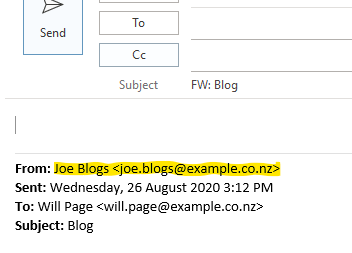
The next two formulas split the sender’s display name and the senders email address.
That’s done by using the split() function. Split() takes the string as its first input and the string to split on as its second input. The output is an array with the number of items corresponding to one more than the number of times the delimiter appears in the text.
Running the highlighted string through split() would result in an array that looks like this:
[
"Joe Blogs ",
"joe.blogs@example.co.nz>"
]
The rest of the formulae is selecting which item in the array we’re interested in with first() or last(), then just trimming the last character off with substring(). One of the formulas takes the first item in the array and the second one takes the last item in the array, but they’re otherwise identical.

 William's IT Blog 🍉
Thank you so much for a very good and comprehensive guide. However if I have a email which have been forwarded more than one time this solution only finds the email address and name of the person who forwarded it the last time. How would I do it to get the first original sender?
Thank you in advance!
LikeLike
You could try using the lastIndexOf() function instead of indexOf() to get the last instances of the search text. Alternatively, you could try to split the message body on the string “From: ” and take the last item in the resulting array. E.g last(split(body(‘Body_to_text’), ‘From: ‘))
Now run all your substring actions off that. Do it in a compose to keep your downstream formulae clean (unlike my example below!). One thing to note, the From: expression will be different because you don’t need to get the index of the word From: any more – the name starts at index 0, so it’ll be like
trim(substring(last(split(body(‘Body_to_text’), ‘From: ‘)),0,indexOf(last(split(body(‘Body_to_text’), ‘From: ‘)),’Sent:’)))
It’s probably worth noting that since I wrote this article, Microsoft introduced the slice() function to Power Automate and Logic Apps, which can greatly simplify the expressions. Instead of having to calculate the length of the relevant string by subtracting the index of the end of the string from the index of the start of the string, you only need to specify the index of the end of the string and it does the rest for you.
So this:
trim(
substring(
body(‘Body_to_text’),
add(
indexOf(
body(‘Body_to_text’),
‘From:’),
6),
sub(
indexOf(
body(‘Body_to_text’),
‘Sent:’),
add(
indexOf(
body(‘Body_to_text’),
‘From:’),
6)
)
)
)
can become this:
trim(
slice(
body(‘Body_to_text’),
add(
indexOf(
body(‘Body_to_text’),
‘From:’),
6),
indexOf(
body(‘Body_to_text’),
‘Sent:’
)
)
)
LikeLike