This is a bit of a technical one. If you’ve got to the point in your Power Automate journey that you’re getting data out of 3rd party APIs then you may have come across an API with quite strict security.
Some APIs will work with basic authentication using a key you generate in the admin portal. Some use OAuth which is better and still within the capabilities of the native HTTP action while some take it further with the need to run some client-side code first then send the output of that along with the request.
There may be a limited ability to do this using the Code editor in a custom connector – I honestly haven’t tried or even looked into the possibility. Anyway, I do know that it’s C# while Postman pre-req scripts are JavaScript so you can’t simply copy and paste it out of the Postman collection the vendor publishes anyway.
There is the ability to run JavaScript code in Logic Apps using an Integration account, but I haven’t tried that, and it’s certainly not possible in Power Automate.
So, here’s how to do it in a JavaScript Azure Function.
There are plenty of resources online that’ll show you how to spin up your first Azure function, so I won’t describe that. I recommend the guidance on MS Learn
I’ll start at the point you’ve created a new project and have the default/template Azure function index.js file open in VS Code

Now let’s look at a pre-req script from a Postman collection. I’m picking the API for a SaaS app called AroFlo, which is ERP for trades companies.
In this example I’m using the script from the Get Users endpoint

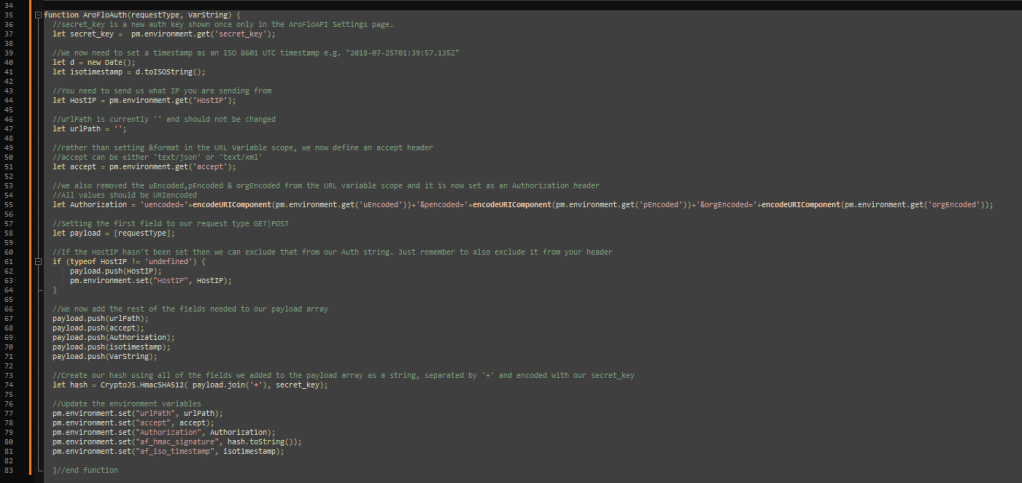
Because I’m not here to discuss exactly how this specific API works, you’re not going to learn much about what this code actually does, but basically it takes an input which contains various parameters of the web request you want to make, transforms it then encodes it using SHA512 and responds with the hash. You then send the hash along with the request – if they run the same code their end with your query parameters and get a matching hash then you’re good and you get your 200 OK response with all that lovely juicy data.
So, start by taking out lines 4 to 7 from the default/template function

Paste the code from the postman pre-req script into this space.
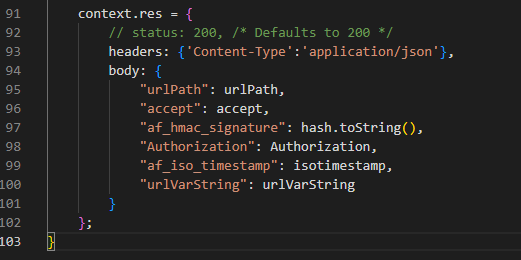
Now, there are some things we need to change in the code. A Postman pre-req script can read and set values in its Postman environment. That’s not relevant in the context of an Azure function so we need to instead pass in the input parameters via body of the HTTP POST request that triggers this function and instead of setting Postman environment variables as an output for the subsequent API call to use, we need to respond to the web request with those values.
So, wherever you see pm.environment.set(“name”, “value”) you will instead need to do something like var name = “value” to keep it in memory until you do the HTTP response at the end.

In this example, instead of setting an environment variable in Postman called urlVarString, we just set one locally. In this case the variable already exists – in the original script it was just tacking a ? character on to the beginning (to use in the URL to denote query parameters) at the time of setting the variable. The code above only does that too, but just re sets the existing variable.
In the other direction:


I’ve replaced pm.environment.get(“secret_key”) with req.body.secret_key
In this case you would provide the secret key as a property of a JSON object in your HTTP request body called “secret_key” and this code puts that in a variable, instead of reading it out the Postman environment.

Down the bottom of the script, the last thing that happens before the script ends, there are a bunch of values that get sent to the Postman environment
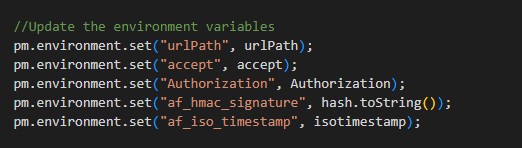
We want to respond to the HTTP request with them so we instead do this:
To conclude:
- Create an Azure Function in VS Code of type JavaScript
- Paste the Postman pre-req script code into the middle of it
- For each pm.environment.get(“variable”), change it to req.body.variable and supply that value in the request body
- For each pm.environment.set(“variable”), set a local variable and then respond with that value in the response body
- Publish the function to Azure then call it using the Power Automate HTTP action (method POST) or create a custom connector.
Anything that the script reads from the Postman environment must be supplied in the HTTP request body and anything it outputs back to the Postman environment is provided in the response body.
You can then use that response in your subsequent API call according to the vendor’s documentation.
Each API call in your flow consists of two HTTP requests. 1. Invoking this function to run the pre-req script and 2. making the actual API call itself.
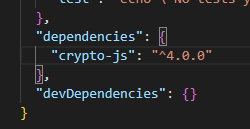
In my case the function does some SHA512 encryption so I had to include the module “crypto-js” in the function by declaring a variable with the required function like this

This also involves dropping the dependency into the package.json file in the dependencies object like this. It’s probably well out of date, don’t @ me:
Hope this helps. As always, if you find my content helpful, please feel free to donate.


 William's IT Blog 🍉