
That’s not a typo. Why would you want an auto-incrementing string?
If you have an app for managing assets for example, you may want to improve the user experience by adding 1 to the end of an asset number or identifier when creating new records, to save the operator having to do fiddly things in the form.
Anyone with a basic understanding of Power Apps would know how to simply add 1 to a number, but what if your assets are in string form with a text code followed by a number. You may see this often with asset codes. e.g a PC located in the Timbuctoo office might be TIMPC0003.
You might want your Power Apps Form for creating a new record for a PC in the Timbuctoo office to automatically find the last PC’s asset code and add one to the number, e.g TIMPC0004 then use that as the default value in the asset code text input box.
If this sounds like the sort of thing you need to do, read on…
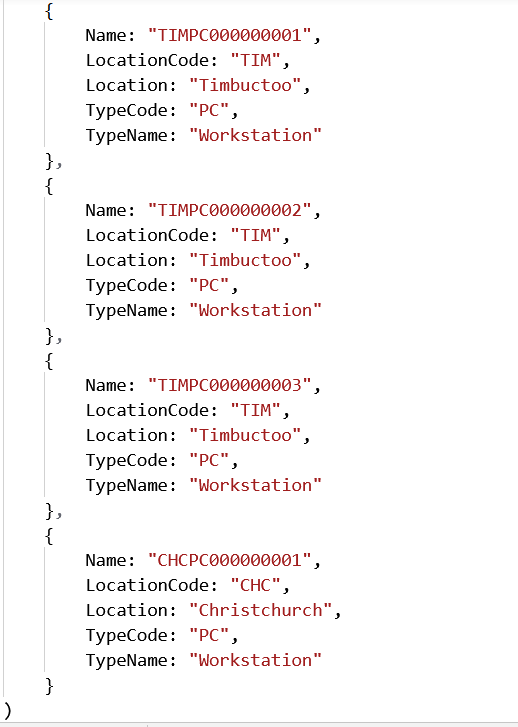
We’ll start with a collection. This would be your CIDB in reality, but we’ll keep things simple
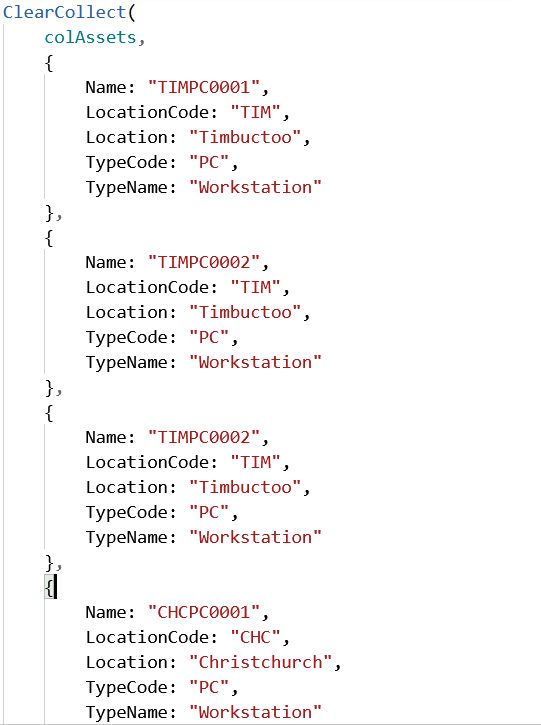
I’ve got 3 existing PCs in Timbuctoo and one in Christchurch.
So, how do we add 1 to the asset with the highest number?
What we need to do is firstly find the last one, then take that asset code (Name) and split this string into two parts. One part is the alpha (non-numeric) part and the other being the numeric part. We increment the numeric part then recombine the two parts.
Firstly, identify the last one for our chosen location and asset type
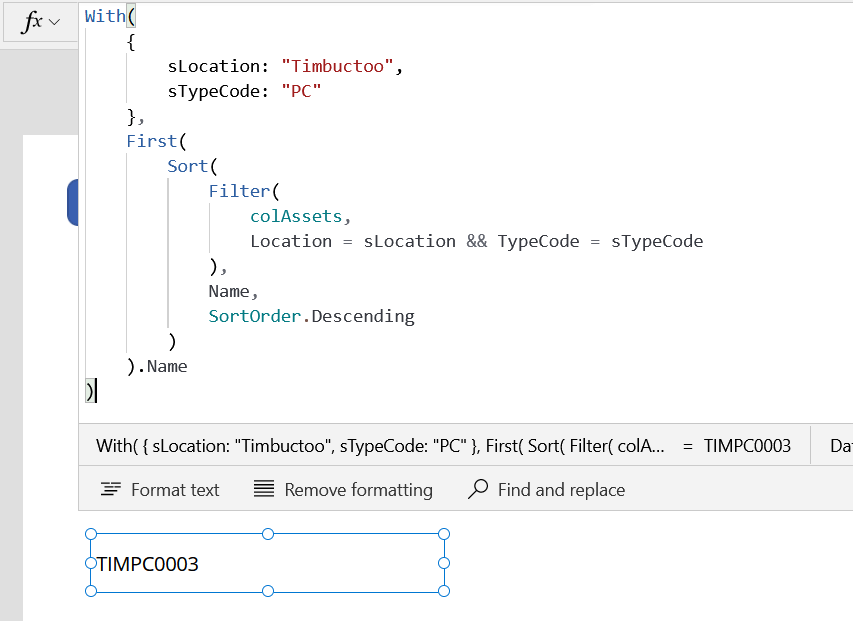
I’ve used With() here just to show the variables being used to filter the CIDB visually separate from the filter itself. As you can see we’ve chosen PCs in Timbuctoo, sorted that descending and grabbed the first vale of Name – TIMPC0003
Now how do we identify what part is a number and what part is a string?
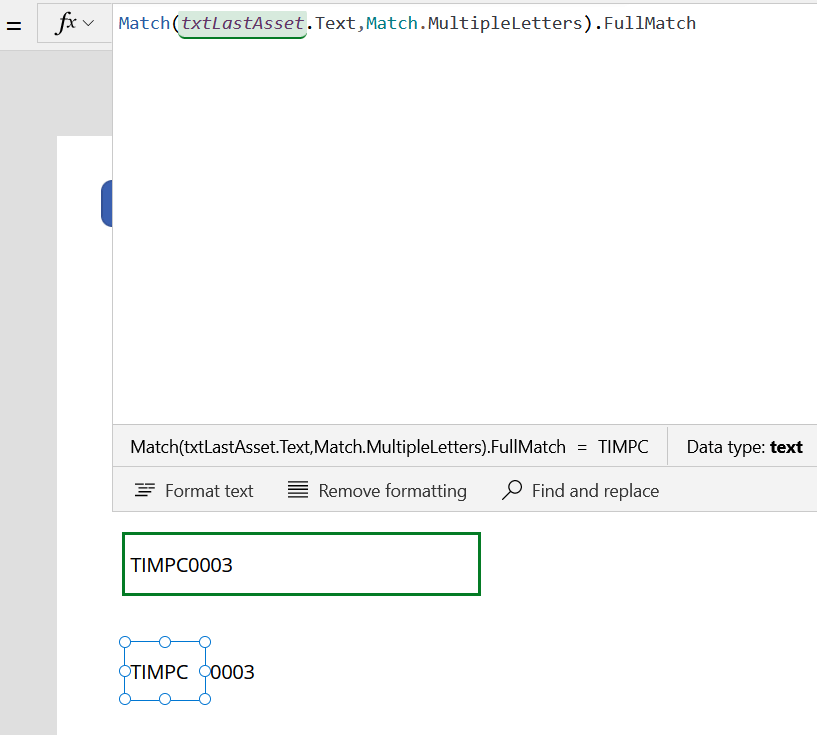
One way you can do this is via the Match() function.

Here you see the predefined pattern Match.MultipleDigits being used to get the digits. Likewise Match.MultipleLetters can be used to extract the alpha portion.
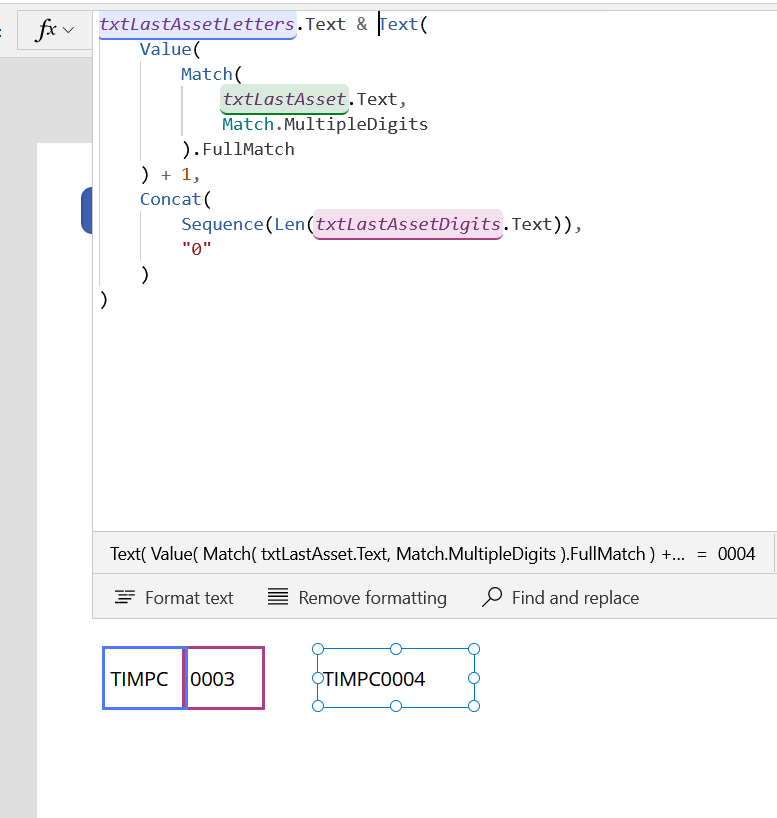
Let’s see how we can increment this by 1.

Oh dear 😦 we’ve chopped off our zeros by converting the string to a number.
No matter, we can just pad it out by the length of the original string!

The Sequence() function is the best thing they ever introduced to Power Apps. I’ll die on that hill so don’t @ me. We’re using it here to create an array with the same length as the source string. The contents don’t matter because we’re just concatenating a bunch of string “0” characters together with a length equal to the length of the numeric part of the original asset name string, to feed into the Text() function’s format_text input.
Putting it all together:
Let’s see how versatile this is. We’ll go back to the start and change the filter parameter:
No problem, it worked perfectly, the new code is CHCPC00002!
And just to prove we can pad out a dynamic number of numeric characters:
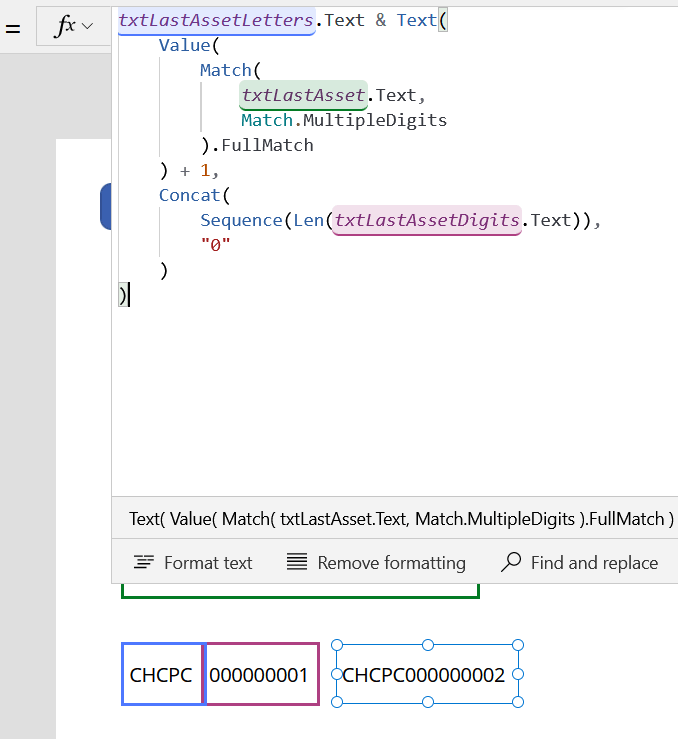
Sequence() doing its job again.
If you’ve read this far you’re probably already thinking – “Well ackshually, William, what if you’re already at CHCPC9999?”
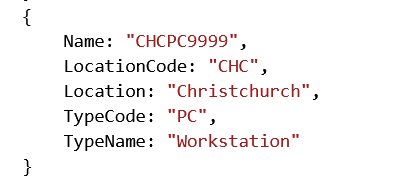

It works fine. The Text function is only being told to pad to 4 characters, but that doesn’t limit it to 4 characters.
“Well akshually, Willam. When you sink that new asset into the DB and sort alphanumerically, you’ll still get CHCPC9999 so you’ll have a duplicate name for the next record!”
Correct – you will. So here’s how to sort that problem out (caveat – you may experience delegation issues with this. Use a formula column in Dataverse or a view in SQL to calculate this column server side, but if your data source is small and you’re using SharePoint, here’s how to it in the app)
Raw data:

Confirm we’re not picking up the last one properly:

Solution: Move the pattern matching to the array before sorting and selecting the first element:

Here we use AddColumns() to add a new column which contains the numeric portion of the asset name which we can then sort by. This means we can correctly sort by the highest numbered asset, regardless of the padding.
The last “well, ackshually” would be a situation where the structure isn’t as simple as XXXXX00000. What if your asset name is like C1CA00003? Using the technique above the recombined string would look like C2, which is obviously not right. You can get around this using a couple of bits of Regex: for the numbers it’s “\d+$” instead of Match.MultipleDigits and for the rest of the string it’s “^(.*?)(?=\d+$)” instead of Match.MultipleLetters
If you feel like you got some value out of this blog post, feel free to donate.


 William's IT Blog 🍉