If you work in the data platform space and you’re used to SQL, Power Query and other declarative methods of doing data transformations, you’ll probably be a bit disappointed with the lack of ways of manipulating data in Power Automate and Logic Apps. And to be fair, it’s not the right tool for the job when it comes to that sort of thing.
But like lots of things in life, you sometimes end up having to open the proverbial beer bottle with your teeth and doing it anyway .
There’s little you can’t do with tedious and long-running loops in Power Automate and Logic Apps if you just want to turn your input array into an output no matter how dirty it is, but it’s always best to avoid those if you can, and one of the best tools in the box is the Select action.
- Introduction & Basics
- Basic Transformation
- Advanced Transformation
- Text Mode Mapping
- Creating CSS Tables
- Conclusion
Introduction & Basics
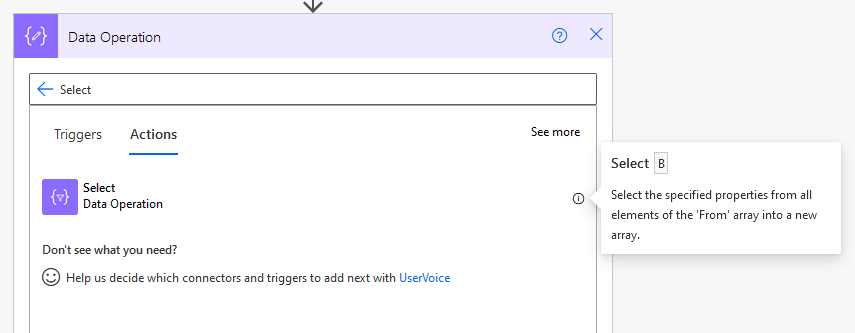
The inappropriately named Select can be found in Data Operations:
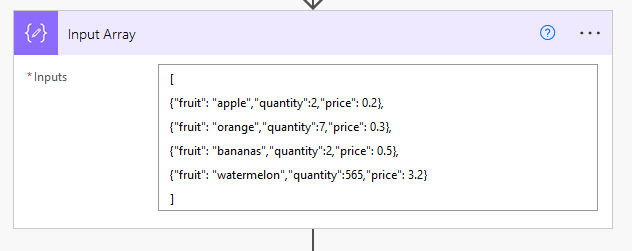
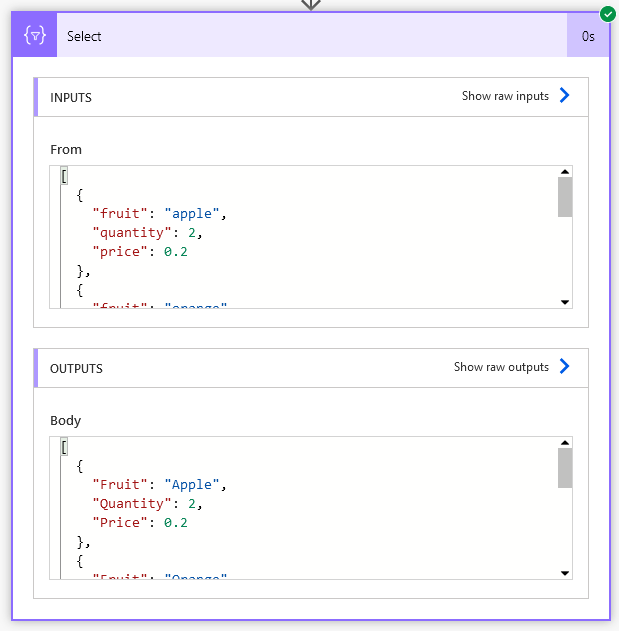
Here’s a simple example of using the Select for something akin to the SQL AS statement, where we’ve simply renamed the columns to proper case. First, lets have some sample data. Note the keys and values are all lower case.
Each column is specified on the right hand side as simply item()?[‘column’] where column is the name of the column from the input:
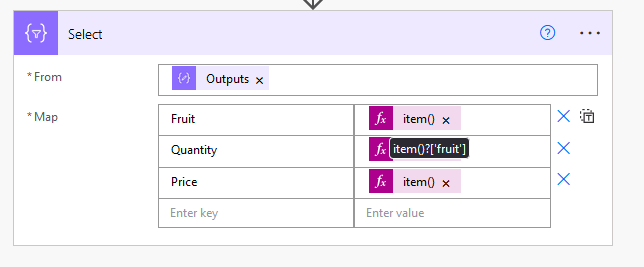
However, despite doing nothing with the values, we are renaming the columns on the left hand side by typing those new names out in the mapping. This is like doing fruit AS Fruit etc in SQL
Basic Transformation
Another simple function of the Select action is to change the data on the right hand side too. Let’s say we want the name of the fruit to also be in Proper case:
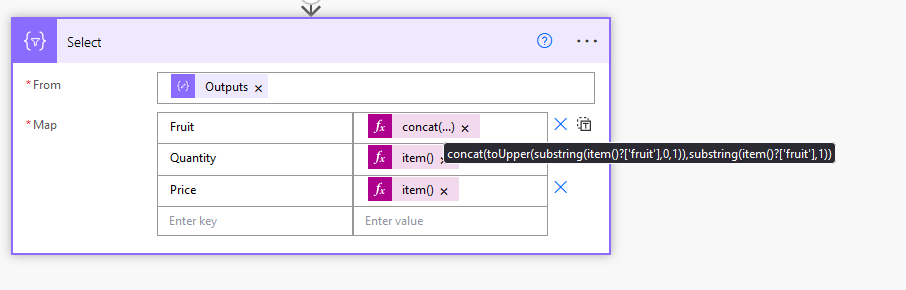
As you can see we have now renamed the column to Proper case and also modified the value to proper case too. No thanks to the lack of an in-built toProper() function, but we can do it anyway with the tools we have!
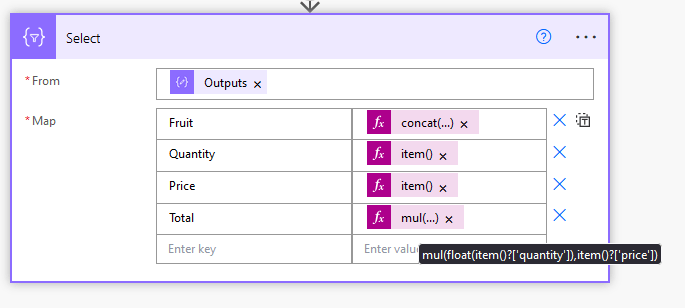
So what if we want to add a new column using data from other columns?
Here we convert the quantity to a floating point number and multiply it by the price, which is already a float. The output is called Total
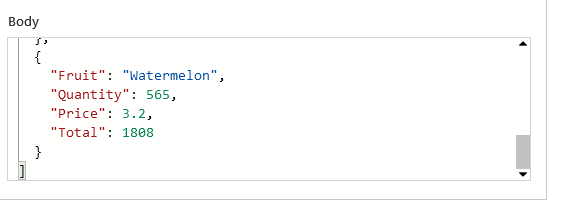
Great, we have $1808 worth of watermelon. E.g. SELECT quantity * price AS Total
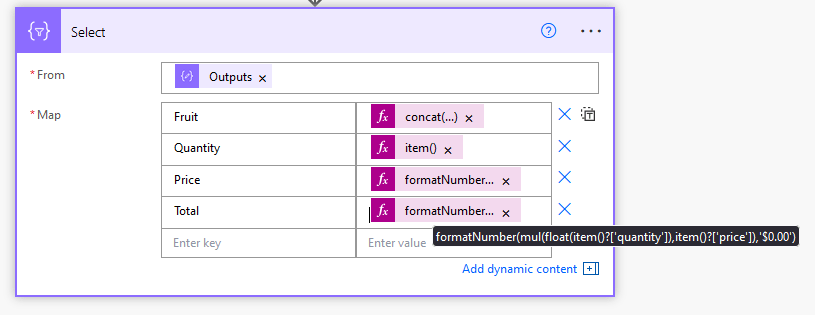
Now let’s make this a bit more human friendly:
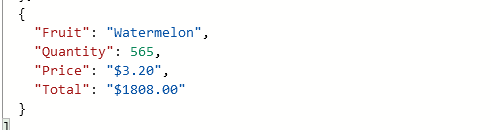
Format the currency columns as a 2 decimal dollar value:
Wonderful:
Advanced Transformation
So far we’ve renamed columns, create a new one and done some string manipulation and numeric calculations with the values inside this columns. But let’s also look at collection functions.
Yes, you can work with multi-dimensional data inside Power Automate. Here’s a brief example.
Going back to the input data, let’s add an array column.
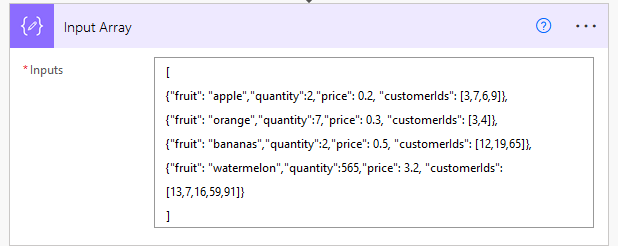
We’ve added customerIds. It’s an array of variable length containing integer numbers.
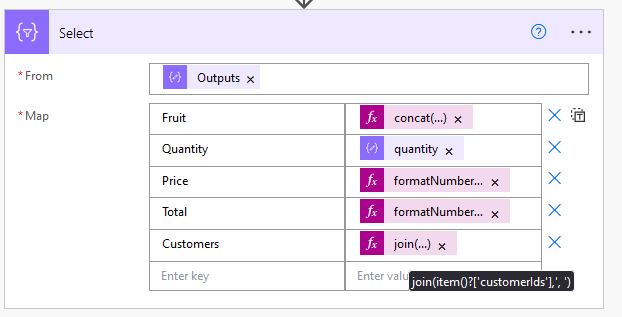
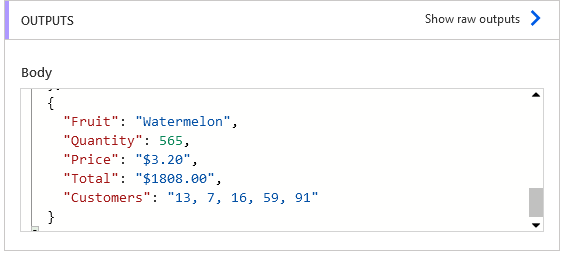
Let’s say we want to create a comma separated string column with those:
Text Mode Mapping
Ok, so now let’s unleash a bit more power from the Select action:
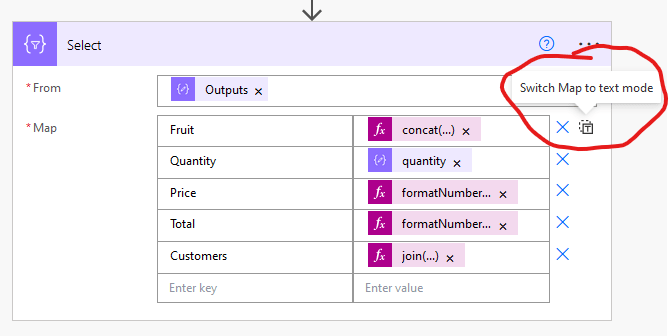
Here we can construct a JSON object and build all sorts of cool stuff with our data.
Want to add a property without having to specify each column? Let’s add that Total column to the original array without having to write out all the other columns:
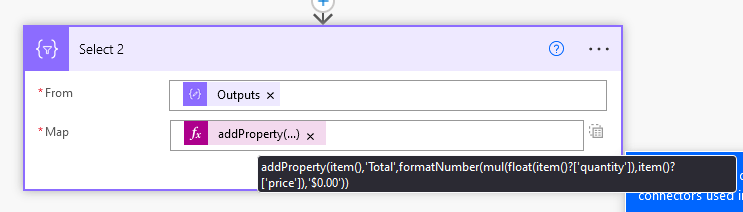

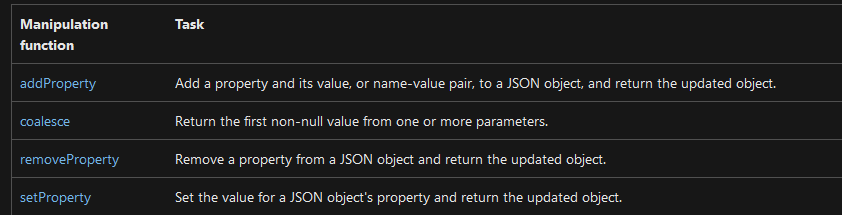
You can run any of these manipulation functions against item() when you’ve switch the map to text mode (also concat() ):
Creating CSS Tables
You can use Select if you want to create a single column array of strings for constructing things like Power Automate approvals markdown tables or Div tag tables from your data. Let’s look at Div tags:
Firstly, a bit of CSS

Now the Select with the Div tags forming a string input to bring it all together. You can also do this with a single concat() function too, but it’s a lot easier to see what’s going on this way. You just need to wrap it all in double quotes every time you edit the flow, or it won’t save.
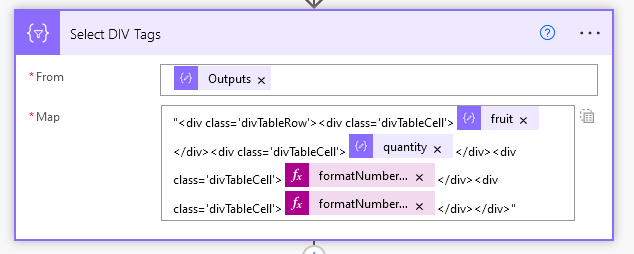
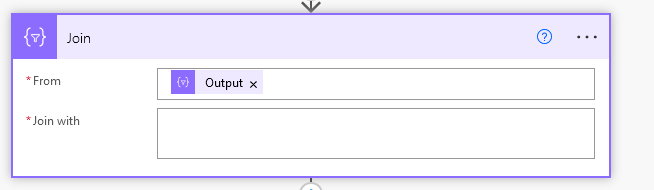
Join the rows of strings on a new line (can be an empty string)
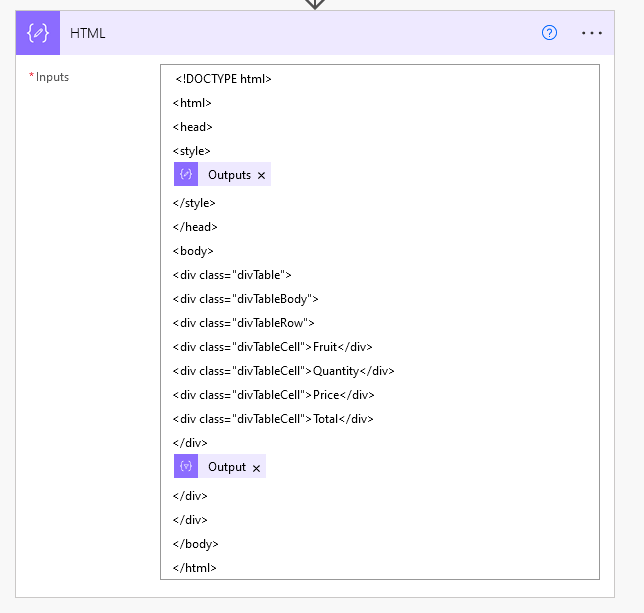
Put it all together with the CSS inside the style tags and the joined string rows in the body
Run it:


Conclusion
These are just some of the things you can do with a Select. I haven’t gone into a couple things I’d like to due to time constraints:
- Getting a semi-colon separated string of email addresses from a multi-selectable Person column in SharePoint
- More multi-dimensional stuff using collection functions within Select
In any case, I’ve demonstrated how to use Select to add, drop and rename columns, manipulate the values of columns or calculate things based on the values of more than one column. I’ve also shown how you can do advanced things like create CSS or Power Automate markdown tables using Select with no Apply to each/For each loops in sight.
You can help me to continue producing this content with a small donation.


 William's IT Blog 🍉
1 Comment