
This blog is about using the xpath() function to do quick left joins in Power Automate and Logic Apps. It’s probably one of the most esoteric posts I’ve ever done and I won’t be at all surprised if it languishes at the bottom of the charts on my stats page, but I need to document this so here goes..
If you’re a regular reader of my blog you’ll know that I like to avoid loops wherever possible. They’re time consuming and annoying to debug at runtime, and kind of inefficient.
You’ll also know that the Select action can do a lot of cool stuff, but what it can’t do is nest actions within the Map input. Sure, you can run anything that exists in the list of workflow expression functions but you can’t put an action in there which applies to each row of the input array.

What if I want to do a left join like in SQL or even in Power Apps where we can do a LookUp() within an AddColumns() function to achieve the result?
You can’t do that because there’s no filter() or lookup() functions in the expression language.
So what can you do? Obviously instead of Select, you can loop through each item in the left hand array using a For each/Apply to each and within that loop you do a Filter array action on the right hand array then select the required property from the result with first(body(‘Filter_array’))?[‘whataver’] and finally push the result onto an array variable using the Append to array variable action. This is annoying and especially so when you’re already in a loop because then you’ve got to clear the variable between each iteration and run the outer loop with concurrency set to 1, which is SLOW.
or….
You can use the xpath() function to do the lookup! We can only use Xpath 1.0 in Power Automate and Logic Apps so we’re missing a lot of features of the newer versions, but thankfully we can use to achieve our left join without a loop.
Let’s get into an example. Here are two arrays. One is called Fruit and one is called Orders. I’ve hard coded these for the purpose of a demonstration but they could come from any connector or an API


I want to add a property to the Orders array called fruitName. This would be easy in SQL with a left join on orders.fruitID = fruit.id but here in Power Automate & Logic Apps there isn’t any obviously easy way to do this. This is where the xpath() function comes in!
To use xpath() you need an XML document, so firstly let’s convert the Fruit table to XML. For the xml() function to work, the input needs to a JSON object with a single property at the root, which can’t be an array. Before we try to convert the Fruit table to XML we need to put it in a JSON structure like below. It doesn’t matter what the properties are called but you have to use names that don’t exist as any of the properties of the array within. I used fruits as the array property key while the array itself contains objects with a property called fruit.

If you’ve got data from an API like SharePoint or the SQL connector it’ll have a property called “value” which you’d use in place of the Fruit array here.
Now we have a JSON object with the correct structure, convert to XML:

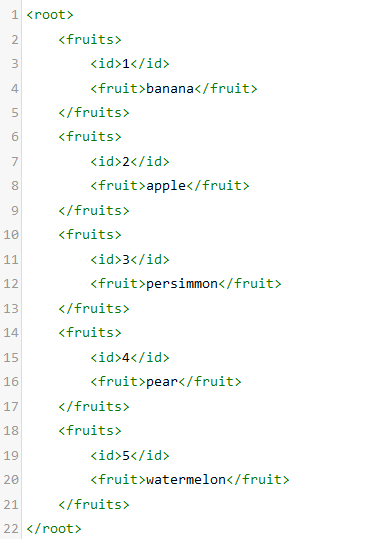
This is what it looks like when you run it:

And when it’s linted:
Put a single quote into a compose. This is used later in a string concatenation:

Now finally the left join. I’ll explain how this works below, which will help you adapt this technique for your own needs:

As you can see I’ve chosen to do an addProperty here to add fruitName to the left hand table but this could also be done with the Select in key-value mode with just the xpath(… bit.
So what’s this doing? Let’s see what this function would look like if we only wanted to return the string “watermelon” by its id:
xpath(outputs(‘XML_fruit’), ‘/root/fruits[id=’5′]/fruit/text()’)
If you put that expression straight into the expression editor it wouldn’t parse because of the presence of those single quotes around the 5 – this is just for demonstration purposes to make it clear what it’s doing.
Anyway, what we’re doing here is walking through the path to a node called id where the value is 5 then we get the corresponding value of the node called fruit:
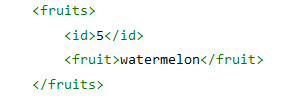
The id=’5′ is the dynamic content from the current item of the array in our Select. This is fruitID = id bit. Looking at the original expression you can see the reference to item()?[‘fruitID’] within the concat() statement.
addProperty(
	item(),
	'fruitName',
	xpath(
		outputs('XML_fruit'),
		concat(
			'/root/fruits[id=',
			outputs('single_quote'),
			item()?['fruitID'],
			outputs('single_quote'),
			']/fruit/text()'
			)

		)?[0]
	)
The reason for the text() bit here is that without it, if we just ended the statement at /fruit then the function returns a blob object with a base64 encoded string of the value within its tags. The text() part gets the actual text values out as a single column JSON array. XPath lets you select array elements of the response with [1] at the end, e.g /fruit/text()[1] if you need to but you can also select array elements on the output using native Logic Apps functions like first() and last() or in my case here I’ve selected it by its index, [0]. Given I’m joining on the primary key of the right hand table I’ll always get a single row result from this expression, but nevertheless it’s still an array (this is a filter not a lookup) so we need to convert that to a single item.
So here’s what the output looks like. It ran in 0ms:

Of course I could nest another addProperty in that select and do the same with a Customers table to get the customer name.
So that’s just about here: This is a quick (both to develop and run) way of avoiding loops in your workflow by leveraging the xpath() function to filter an array within the expression language, and therefore a Select (or other collection action where item() references the current array element), which you can’t do with any of the native collection functions.
I hope you found this useful. Please leave any questions or ideas in the comments!


 William's IT Blog 🍉