
Microsoft Forms is a great way of making a quick and easy form for customers/partners/guests to fill in for whatever data you want to collect.
Sure, it’s not that advanced if you want to go beyond basic text/number validation but in many business scenarios it’s quite enough and very cheap to implement.
One of the most useful things is the ability to attach files to a forms response. The end user can upload a number of supported file formats and you can do things with the files in Power Automate.

It’s not that straight forward to the newcomer though.
For example I have this simple flow that triggers on a form response. We then get the response details and finally the “Attach some files” question

When we run the flow and look at the output, we have a JSON document formatted as a string. It’s not very useful like this:

So let’s put a bit of effort to process it. Convert to JSON:

Now we have some data we can use:

Now we can add an Apply to each loop to the flow, and put the output of this JSON Attachments as the input. Within there use a OneDrive Get file content action to get the file content, with the File input being items(‘Apply_to_each’)?[‘id’] (assuming your loop is still called Apply to each)
If your form is a group form then instead of OneDrive, we use Get file content using path.
Here’s the OneDrive version for personal forms

For group forms you can do Get file content using path like this:

In the SharePoint/group form version, we use a property called link which is the full direct URL to the file. The File Path input of the Get file content using path action expects the path to not include the site’s base URL, so we strip that off with substring like this: substring(items(‘Apply_to_each’)?[‘link’],length(‘https://qt8j.sharepoint.com/sites/Mark8ProjectTeam‘)) where you would replace the URL in the expression with your own group site URL, or just use the integer value for the length of the string, which in my case would be 50.
You can use this output to save a file into SharePoint using Create file. The file name is available within the loop as items(‘Apply_to_each’)?[‘name’]
That’s really all there is for getting the file content. If you know what to do with the file you can stop here.
But let’s say we want to attach all the attachments from the form into an email though. We have to construct an array of attachments that includes the content.
Step back a few paces and initialise an array variable before the loop:
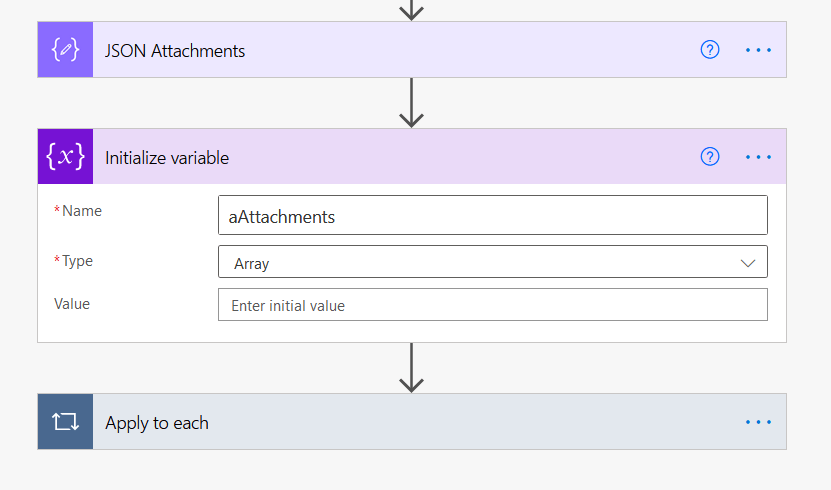
Now add an Append to array variable action within the loop with the schema like this:

Now, outside of the loop, add your Send an email action. Click the icon alongside the attachments to change to JSON input.
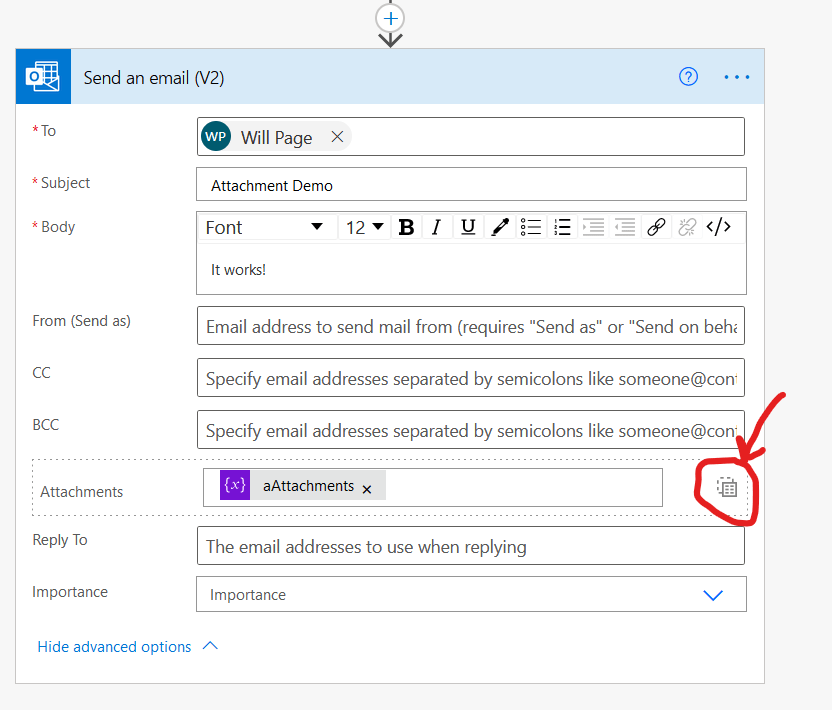


There are many other ways you can handle the files than attaching to email, this is just one example.
The main things to know are:
- The MS Form attachments are saved in the OneDrive account of the person who made the form, or the group’s SharePoint site if it’s a group form.
- The JSON array that contains data about where those files are and their metadata is serialised a string.
- You need to deserialise the string into an array using json() .
- Process each item of the array in an Apply to each to get file content using the OneDrive Get file content action.
- The property you need to input into the Get file content action is items(‘Apply_to_each’)?[‘id’].
- The file name is items(‘Apply_to_each’)?[‘name’].


 William's IT Blog 🍉
Hi
I can get this to work using the get file content one drive function, but can;t seem to get tit to work with the sharepoint equivalent. AS the form I am using is a group form.
Can you advise?
LikeLike
I have not tried this, but I can do that and either update this blog post or create a new one for group forms.
LikeLike